
Visitor FAQs
There are number of things that you can do in Virtual Event:
- Share and gain information on industry or business insights
- Network with professionals and peers in real-time
- Discuss issues and ideas that focus on a topic of mutual concern
- You can view live presentations in Auditorium
- You can visit various exhibitor booths
- You can interact with all the exhibitor by chat, video calling and enquiry
No. You do not need to download or install any software to participate in a virtual event. Please access the event using Google Chrome or any other browser.
Click Here to Register. You can register as a visitor by entering your basic details.
Your login information is the email address and password you provided during registration. To login, simply use those details. Click Here to Login
This is an online event. You do not have to travel to any specific location in order to become a part of the event. You can participate from anywhere you have Internet access.
After login, you need to click on Auditorium in Footer Menu.
After login, you need to click on Photobooth in Footer Menu. In the photobooth, you can take picture with customized frame to promote your business.
After login, you need to click on the Exhibitor List in Footer Menu. You can search any exhibitor with their name or person's name or with their stand number.
After login, you need to click on the Business Categories in Footer Menu there you can see all the business categories.
Whenever you visit any exhibitor booth on the left side of the screen you can see website link, all the social media links and about us information of the exhibitor.
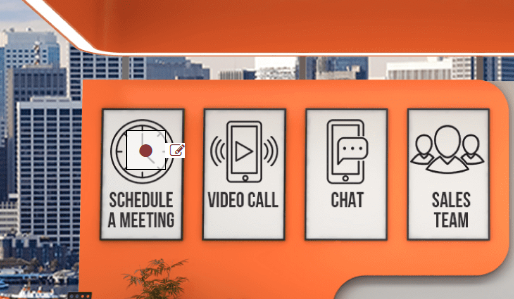
Whenever you visit any exhibitor booth you can see two blinking red dots on Video call and Chat option, By clicking on the dots you can have a video call or chat with that particular exhibitor. If you want connect exhibitor via WhatsApp, you can click on WhatsApp icon on the left side of the screen.
Whenever you visit any exhibitor booth you can see a blinking red dot on Sales Team option, By clicking on it you can have find all contact information about that exhibitor or any team member of any exhibitor booth. You can chat with team members as well.
Whenever you visit any exhibitor booth you can see a blinking red dot on Schedule a meeting option, By clicking on it you can schedule meeting with exhibitor.
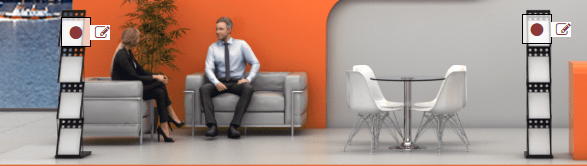
Whenever you visit any exhibitor booth you can see two blinking red dots on brochures stand after clicking on it you can see the exhibitor brochures.
Yes. Like any physical event, we offer a briefcase for you! You can add brochures provided by each exhibitor to your online briefcase and then download before leaving the event.
Whenever you visit any exhibitor booth you can see a blinking red dot on the table in the stand after clicking on it you will see a popup on bottom right side of your screen. There you can submit enquiries for the exhibitor.
Click here to get technical help during the event.
Exhibitor FAQs
Chat will be enabled once exhibitors are logged in. Also a popup will appear once a new message is sent by a visitor.
Outgoing video calling does not require anything to do in specific.
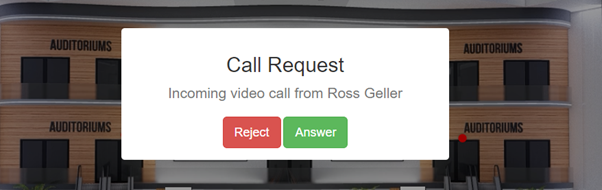
For Incoming video calls, you need to enable the notifications.
If notifications are blocked, you will see following blue bar at top of the page.

You need to click on lock icon in address bar and turn on notifications to enable it as shown below.
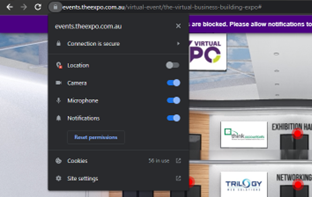
After you turn on notifications, you need to refresh the page once.
Once you enable notifications you will see incoming video call request popup in the event as below.
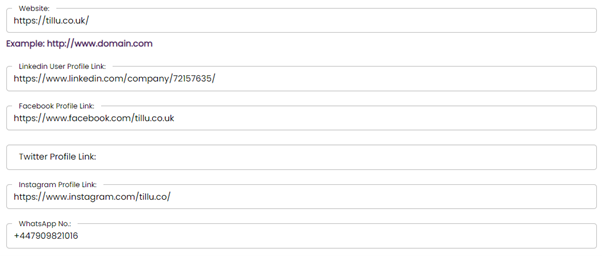
Website, social media links, WhatsApp number and about us information can be updated in the Exhibitor Full Details under Manage My Booth option.

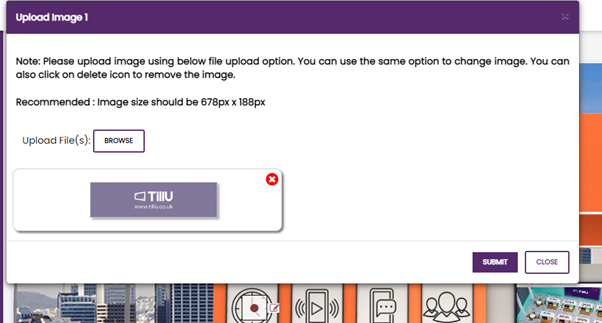
Booth assets can be uploaded from Manage My Booth as shown below.
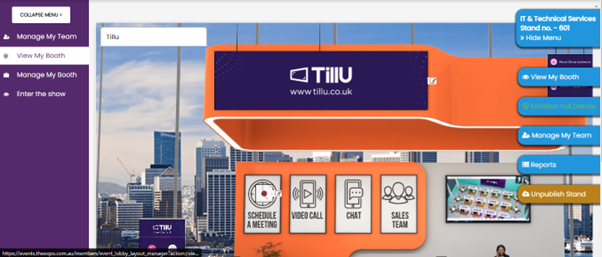
Please click on pencil icon to upload assets. Please follow instructions for image sizes.
Please go to Manage My Booth option and click on pencil icon next to brochure stand.
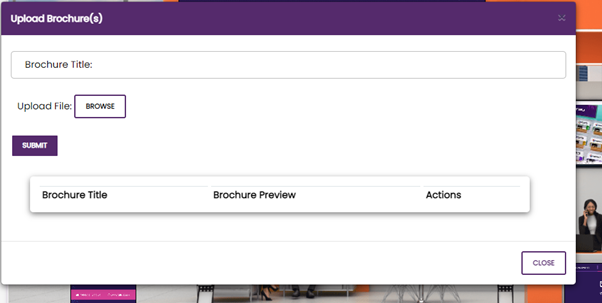
Once you click on pencil icon, you will be able to upload brochures on the stand.
Please go to Manage My Booth and click on “Publish Stand” button to make your booth active.
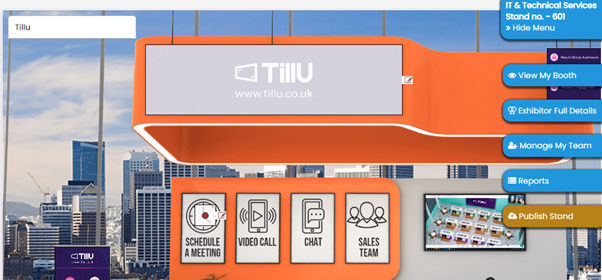
Please go to Manage My Booth and click on pencil icon on next to “Schedule A Meeting” to add a calendar link. Calendly is a recommended calendar link.
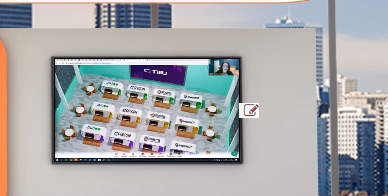
Please go to Manage My Booth and click on pencil icon next to the “Video Panel” to add YouTube or Vimeo video link. Preferable link is YouTube
Profile picture and Stand Logo can be uploaded in the Exhibitor Full Details under Manage My Booth option.
Enquiry emails and Stand visit emails will be available from 1 day before the event.
Click here to get technical help during the event.